> For the complete documentation index, see [llms.txt](https://help.multiomics.illumina.com/llms.txt). Markdown versions of documentation pages are available by appending `.md` to page URLs; this page is available as [Markdown](https://help.multiomics.illumina.com/icm/analyses/analysis-functionality/settings/library-file-management/adding-a-reference-sequence.md).
# Adding a Reference Sequence
Click the **+ Add reference files** button under the[ *Reference Files* section header ](broken://spaces/5WPPw051cYE3Zthy5U7m/pages/4SjUfCXvMrQCvorHGM5A)and choose **Reference sequence** from the *Library type* drop-down list in the *Add reference sequence* dialog (Figure 1, left). If a cytoband file is already associated with an assembly, *Reference sequence* will be the only option available in the *Add reference sequence* dialog and will not appear in a drop-down list (Figure 1, right).
Figure 1. Add reference sequence dialog. If the reference sequence and cytoband files have not been added yet, both options will appear in the Library type drop-down list (left). If one is missing, it will appear as the only option (right). For many model organisms, automatic downloads are available from the Connected Multiomics repository.
If you are using an assembly supported by Connected Multiomics (e.g. human), select **Download reference sequence** and click **Create** to get the reference sequence from the repository. Alternatively, select **Import reference sequence** and click **Create** to add the reference sequence from another source.
If you are using a custom assembly (e.g. for a non-model organism), the *Download reference sequence* option will not be available (Figure 2).
Figure 2. For custom assemblies, automatic downloads are not available so the reference sequence has to be imported from another source.
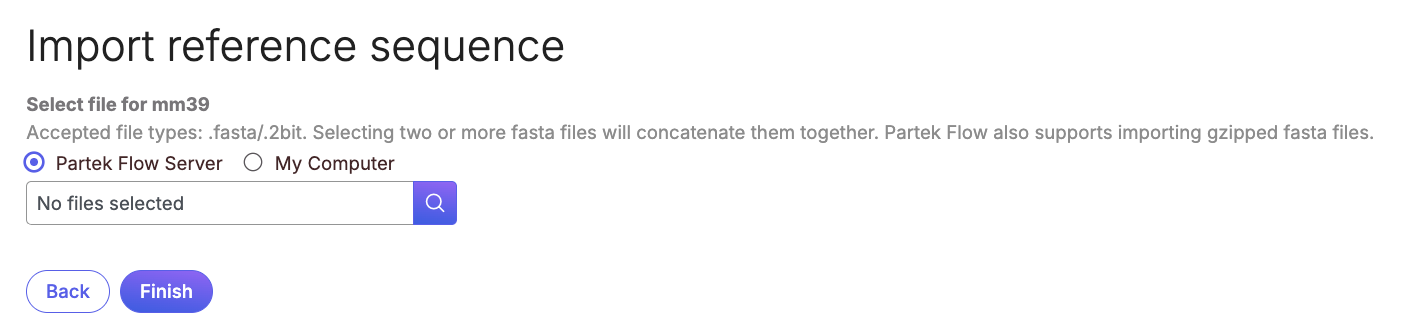
The *Import reference sequence* option allows you to add a reference sequence from the *Partek Flow Server* or *My Computer* (Figure 3). Please choose the option of *My Computer.*
Figure 3. A reference sequence can be added from My Computer.
{% hint style="warning" %}
You can specify multiple fasta files (e.g. one file per chromosome) and ICM will concatenate them. If a fasta file is imported, a 2bit version of the file will automatically be created and vice-versa. ICM will also accept a range of compressed file formats (gzip, bzip2, zip, tar). If a compressed file is imported, it will automatically be uncompressed and processed.
{% endhint %}
---
# Agent Instructions
This documentation is published with GitBook. GitBook is the documentation platform designed so that both humans and AI agents can read, navigate, and reason over technical content effectively. Learn more at gitbook.com.
## Querying This Documentation
If you need additional information that is not directly available in this page, you can query the documentation dynamically by asking a question.
Perform an HTTP GET request on the current page URL with the `ask` query parameter, and the optional `goal` query parameter:
```
GET https://help.multiomics.illumina.com/icm/analyses/analysis-functionality/settings/library-file-management/adding-a-reference-sequence.md?ask=&goal=
```
`ask` is the immediate question: it should be specific, self-contained, and written in natural language.
`goal` is optional and describes the broader end goal you are ultimately trying to accomplish on behalf of the user. GitBook uses it to tailor the answer towards what is most useful for that goal.
The response will contain a direct answer to the question and relevant excerpts and sources from the documentation.
Use this mechanism when the answer is not explicitly present in the current page, you need clarification or additional context, or you want to retrieve related documentation sections.
.png?alt=media)
.png?alt=media)
.png?alt=media)