Microarray Library Files

Microarray library files can be managed under Microarray library files section on Other library files tab on the Library file management page (Figure 1). The chip name and download source of stored Microarray library files will be shown in the table in this section.

Figure 1. Microarray libraries files section in Connected Multiomics library file management page.

Microarray probe tab files are used for processing microarray data in Connected Multiomics. When microarray intensity data files (e.g. Affymetrix .CEL files) are imported into a project, the chip type is automatically detected and the appropriate probe tab annotation file is downloaded. Thus, you would normally not need to manually add any probe tab annotation files.

To add a custom probe tab file (e.g. for a custom chip), click the + Add probe sequence button at the Microarray library files section (Figure 1). Scroll to the bottom of the Chip name drop-down list and choose Other / Custom. Name the chip by typing into the Custom name box and click the Create button (Figure 2). Characters such as $ * | \ : " < > ? / % cannot be used in custom names.

Figure 2. Adding a custom probe tab file e.g. for a custom microarray chip.
A custom probe tab file can be added from your local computer by clicking the My Computer option. When browsing for files, only the files with relevant file extensions will be visible (.probe_tab and various compressed formats).

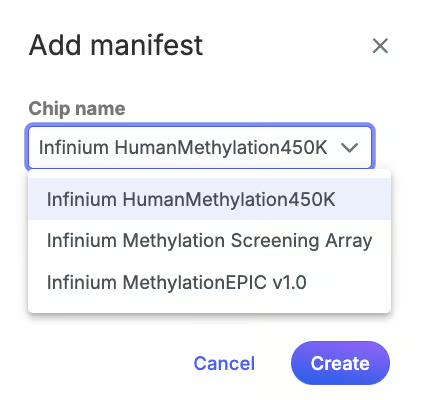
To add manifest, one needs to click the + Add manifest button at the Microarray library files section (Figure 1). In the dialog, choose the right file from the dropdown list and push the Create button to compete the task (Figure 3).

Figure 3. Add manifest dialog for microarray data in Connected Multiomics.

Last updated

Was this helpful?