> For the complete documentation index, see [llms.txt](https://help.multiomics.illumina.com/llms.txt). Markdown versions of documentation pages are available by appending `.md` to page URLs; this page is available as [Markdown](https://help.multiomics.illumina.com/icm/studies/view-studies/view-studies-2.md).
# Analysis and Data Management
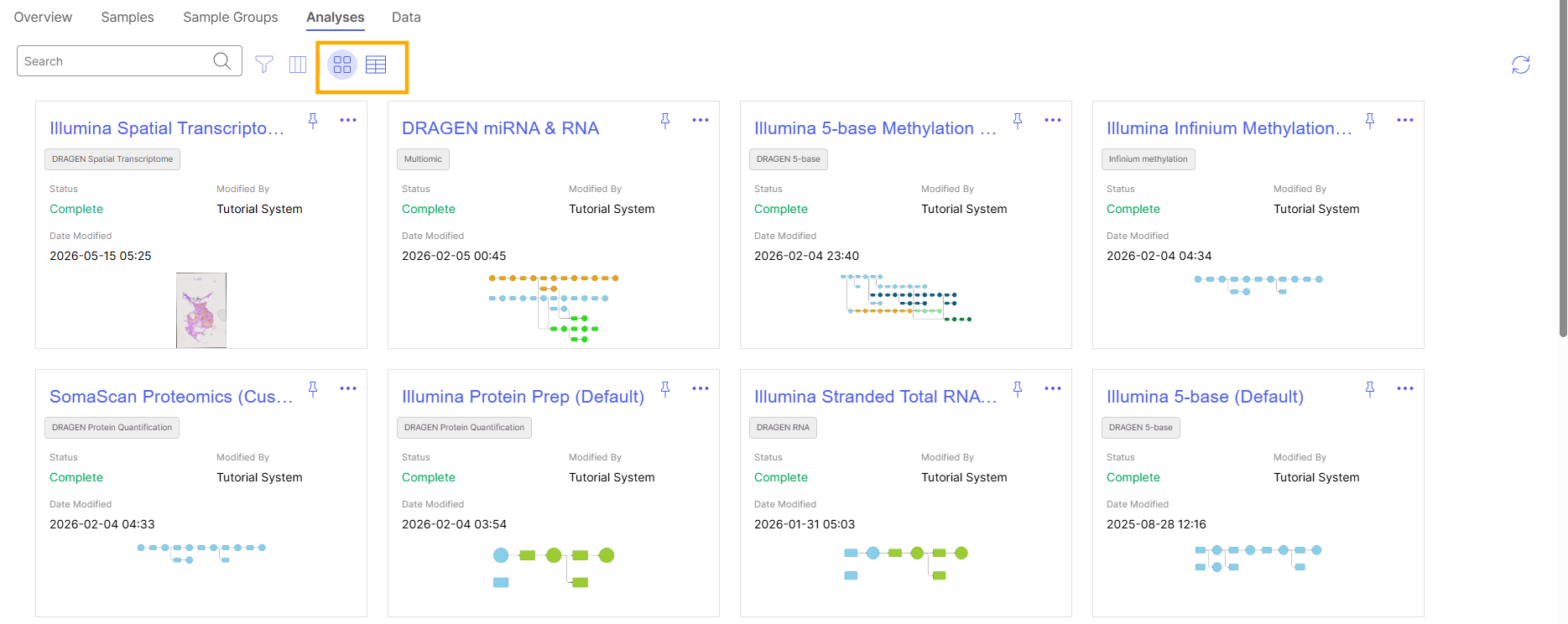
In the **Analyses** tab, you'll see all the analyses in your study. Multiple analyses can be performed on each study, user can use sample group to create a subset of the data to perform analysis, or choose different analysis type: default or custom to analyze the data in a study.
### Card View vs List View
There are two types of display on *Analyses* page. On the upper-left corner of the page, you can switch between the two view styles, card view vs list view.
In **Card View**, each card will display the following information.
| Information | Description |
| ------------- | --------------------------------------------------------------------------------------------------------- |
| Analysis Name | Name of analysis. |
| Data Type | Data type for data imported into the analysis. |
| Status | Status of analysis. See [Analysis Statuses](#analysis-statuses) for a table of statuses and descriptions. |
| Modified By | Last user who modified the analysis. |
| Date Modified | Date and time when the last update was made. |
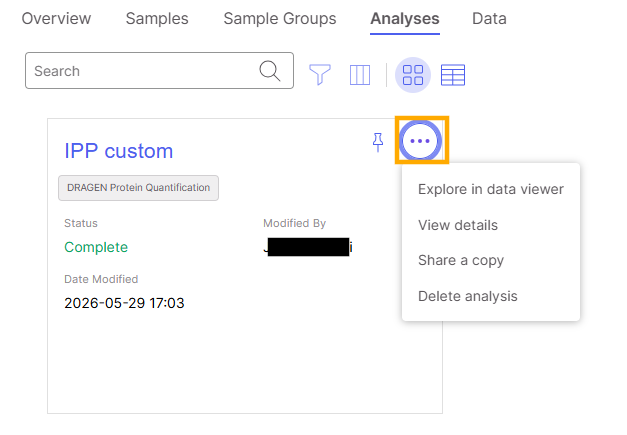
The pin button (  ) pins an analysis to the top. The three dots (  ) opens to more options:
* **Explore in data viewer**: Open a saved data viewer session or a new data viewer session to create plots.
* **View details**: Show more details of the analysis, including error message when the analysis failed.
* **Share a copy**: Create a link to share the analysis.
* **Delete analysis**: Delete the analysis.
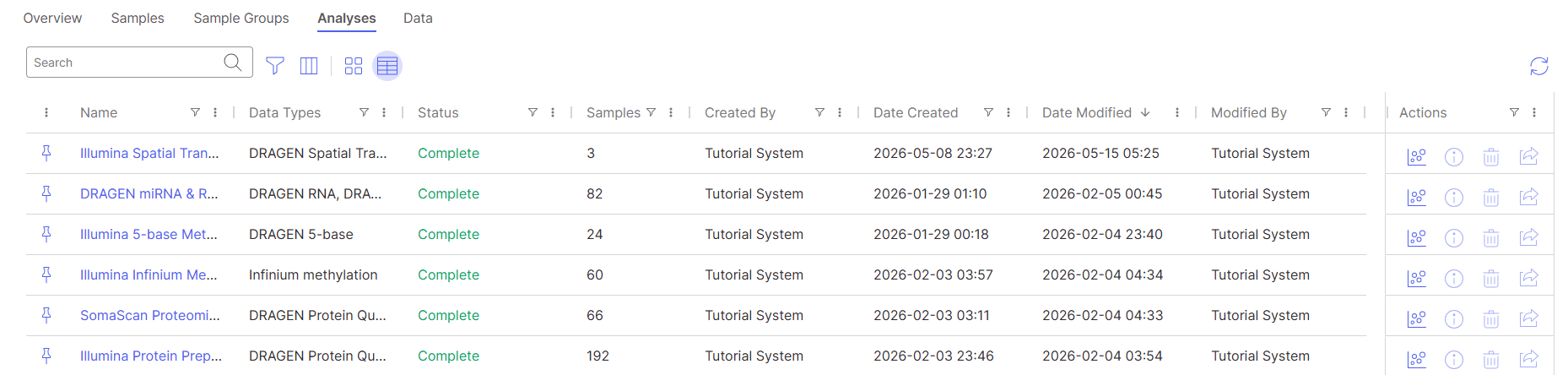
There are more controls in **List view**:
On column header, there is filter icon (.png?alt=media)), it allows to filter the rows in the table based on the selected value:
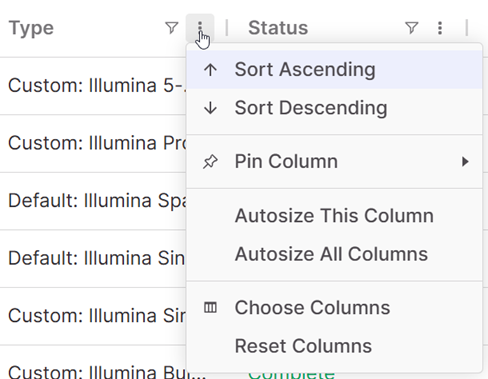
Click on the 3 dots next to the filter icon (.png?alt=media)) to sort the table, choose columns to display
### Create Analysis
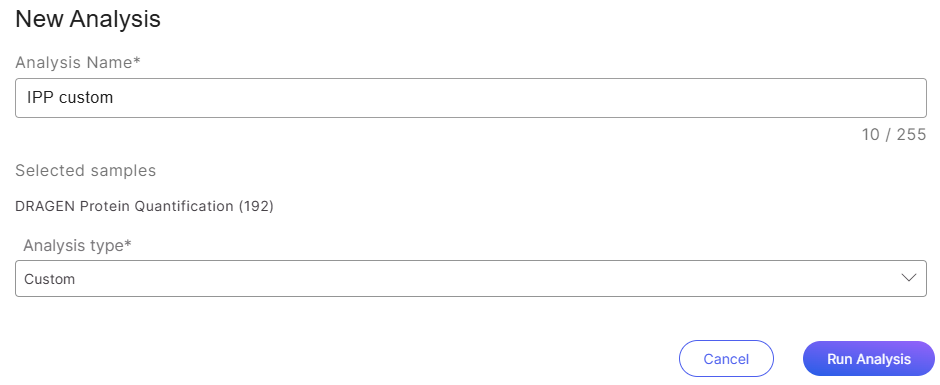
To create a new analysis, go to Samples tab or Sample Groups tab, select at least one sample or one sample group, the Create analysis button ( ) will be enabled (upper-right of the table), click on this button to create a new analysis. In the **New Analysis** dialog, give your analysis a name, choose an analysis type from the dropdown menu.
{% hint style="warning" %}
If all samples are chosen for the analysis, a sample group will be automatically added to the Sample Groups page containing all of the samples in the analysis.
{% endhint %}
{% hint style="warning" %}
Current spatial multisample analysis does not yet support the import of a mix of samples that use pipeline-manifest.json and samples that do not. When running an analysis on a sample group that has both types of samples, only those samples with a pipeline-manifest.json file will import.
{% endhint %}
### Analysis Types
| Analysis Option | Description |
| ---------------------------------------------------------- | ------------------------------------------------------------------------------------------------------------------------------------------------------------------------------------------------------------------------------------------------------------------------------------------------------------------------------------------------------------------------------------------ |
| Default: Illumina Proteomics | General analysis pipeline for Illumina protein prep samples, with PCA and hierarchical clustering heatmap results. The maximum samples for analysis is 9,000. |
| Default: Illumina Single Cell Transcriptomics |
General analysis pipeline for Illumina single cell prep samples, including the processing steps to output PCA and UMAP plots, plus graph-based clustering visualizations.
For each sample, all features are reported and raw counts are used as the count value. If the feature IDs are not unique mean is used for deduplication. The maximum samples for analysis is 1,000.
|
| Default: Illumina Single Cell Transcriptomics -Perturb-seq | General analysis pipeline for Illumina single cell prep samples, including the processing steps to output PCA and UMAP plots, plus graph-based clustering visualizations. gRNAs are available but not further analyzed since user input is required for clustering and differential expression to obtain desired results. The maximum samples for analysis is 1,000. |
| Default: Illumina Spatial Transcriptomics | General analysis pipeline for Illumina spatial samples, including a Spatial map with transcripts overlayed on the tissue image where each point is a grid. Graph-based clusters are also plotted on a UMAP and pie chart. The maximum samples for analysis is 100. |
| Default: Illumina Bulk Transcriptomics | General analysis pipeline for Illumina mRNA and Total RNA prep samples including PCA and hierarchical clustering heatmap results. The maximum samples for analysis is 500. |
| Default: Illumina miRNA | General analysis pipeline for Illumina miRNA prep samples including PCA and hierarchical clustering heatmap results. The maximum samples for analysis is 500. |
| Default: Illumina 5-base DNA Methylation | General analysis pipeline for 5-base DNA prep samples including regional methylation PCA plots, k-means clustering, and QC. The maximum samples for analysis is 200. |
| Custom: Multiomics | Available inputs include Illumina proteomics, single cell, spatial, and bulk transcriptomics, miRNA, 5-base DNA and Infinium methylation as well as third-party data types including Seurat (RNA), Seurat (ATAC), Somalogic ADAT, Gene counts in sf Format, and VCF. Two or more data types can be analyzed together in any combination. The maximum samples for analysis is 200. |
| Custom: Illumina Proteomics | Starts with the quantified samples which have undergone prior normalization and offers flexible analysis options. The maximum samples for analysis is 9,000. |
| Custom: Illumina Single Cell Transcriptomics | Starts with single cell counts and offers flexibility with the analyses pipeline step. For each sample, all features are reported and raw counts are used as the count value. If the feature IDs are not unique mean is used for deduplication. The maximum samples for analysis is 1,000. |
| Custom: Illumina Single Cell Transcriptomics -Perturb-seq | Starts with single cell counts and offers flexibility with the analyses pipeline step. For each sample, all features, both GEX and gRNAs, are reported and if feature ID's are not unique, Mean is used for Deduplication; raw counts are used as the count value format and cells with a total read count at least 400 are reported. The maximum samples for analysis is 1,000. |
| Custom: Illumina Spatial Transcriptomics | Two starting nodes as cell-binned or grid-binned data, including the spatial image outputs, and offers flexibility with the analyses parameters. The maximum samples for analysis is 100. |
| Custom: Illumina Bulk Transcriptomics | Starts with salmon format sample counts that have not been normalized and offers flexible analyses options. The assembly and annotation model used in secondary analysis is required to annotate the features. The maximum samples for analysis is 500. |
| Custom: Illumina miRNA | Starts with imported count matrix that have not been normalized and offers flexible analysis options. The maximum samples for analysis is 500. |
| Custom: Illumina 5-base DNA Methylation | Starts with importing selected 5-base methylation data and offers flexible analysis options. The maximum samples for analysis is 200. |
| Custom: Illumina Infinium Methylation | Starts with importing selected idat files and offers flexible analysis options. No limit. |
| Custom: Third-party analysis | Starts with data import. This option appears only when third-party assay data has been uploaded. |
### Run Analysis
Click to run the analysis. You will receive a notification that the analysis was successfully created.
Wait for the analysis status to change from "Pending" to "Complete".
### Analysis Statuses
The following table describes the different analysis statuses.
Status
Description
Pending
The analysis has been initiated but has not yet started. It is waiting in the queue to be processed.
In Progress
The analysis is currently being executed. The system is processing the data and generating results.
Complete
The analysis has finished, and the results are ready to be viewed. Click into the analysis to view it.
Importing
The analysis is importing from a shared copy. The status will change to Complete upon successful import.
Offline
During import, the source server might be temporarily unavailable. Click the refresh button. Contact tech support if the issue persists.
Error
The analysis has ended in error. Using the Analysis tab list view, click the info icon to get more information about the error type. The error can be further diagnosed using the Inspect analysis link.
Once the analysis is complete, you can click into it to view the results. Refer to the "[**Enter Analysis**](/icm/analyses/enter-analysis.md)" section for more information on how to view your analysis.
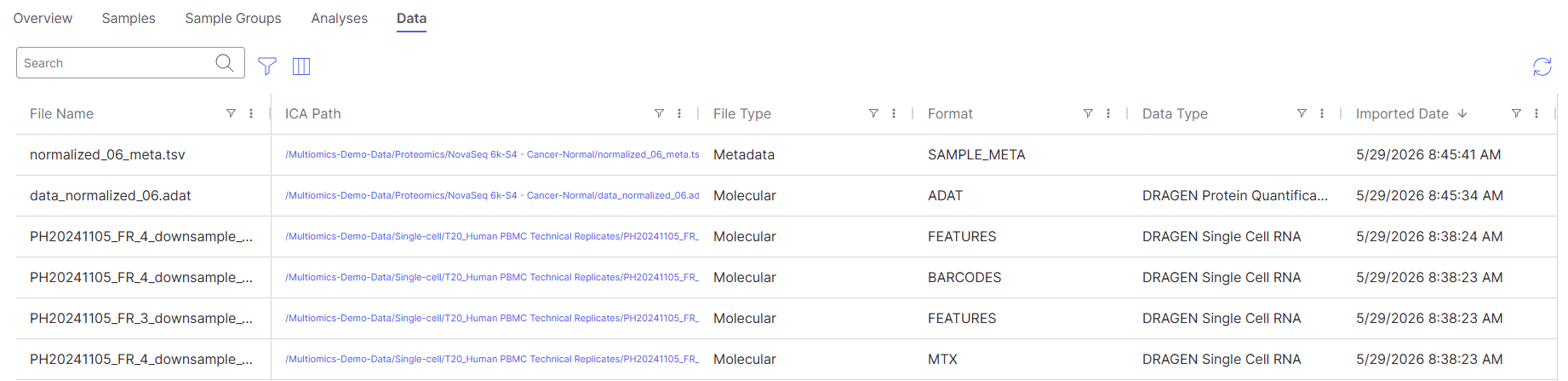
## Data
In the **Data** tab, you'll see a list of all the data and metadata files within your study from which your samples are derived.
{% hint style="warning" %}
Note that deleting data or metadata files will not remove any samples that were added to Connected Multiomics from those files. The samples will remain in Connected Multiomics even if the original files are deleted, ensuring that your sample data stays intact.
{% endhint %}
###
---
# Agent Instructions
This documentation is published with GitBook. GitBook is the documentation platform designed so that both humans and AI agents can read, navigate, and reason over technical content effectively. Learn more at gitbook.com.
## Querying This Documentation
If you need additional information that is not directly available in this page, you can query the documentation dynamically by asking a question.
Perform an HTTP GET request on the current page URL with the `ask` query parameter, and the optional `goal` query parameter:
```
GET https://help.multiomics.illumina.com/icm/studies/view-studies/view-studies-2.md?ask=&goal=
```
`ask` is the immediate question: it should be specific, self-contained, and written in natural language.
`goal` is optional and describes the broader end goal you are ultimately trying to accomplish on behalf of the user. GitBook uses it to tailor the answer towards what is most useful for that goal.
The response will contain a direct answer to the question and relevant excerpts and sources from the documentation.
Use this mechanism when the answer is not explicitly present in the current page, you need clarification or additional context, or you want to retrieve related documentation sections.

 ) will be enabled (upper-right of the table), click on this button to create a new analysis. In the **New Analysis** dialog, give your analysis a name, choose an analysis type from the dropdown menu.
%20(1).png?alt=media) to run the analysis. You will receive a notification that the analysis was successfully created.
to run the analysis. You will receive a notification that the analysis was successfully created.
%20(1).png?alt=media)
%20(1).png?alt=media)
 to get more information about the error type. The error can be further diagnosed using the Inspect analysis link.