ICA is now BioInsight Platform Core
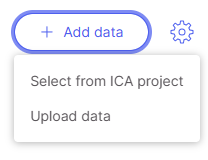
%20(1)%20(1)%20(1)%20(1)%20(1)%20(1)%20(1).png?alt=media) button on the top right.
button on the top right.
ICA is now BioInsight Platform Core
ICA is now BioInsight Platform Core

ICA is now BioInsight Platform Core
ICA is now BioInsight Platform Core
 .
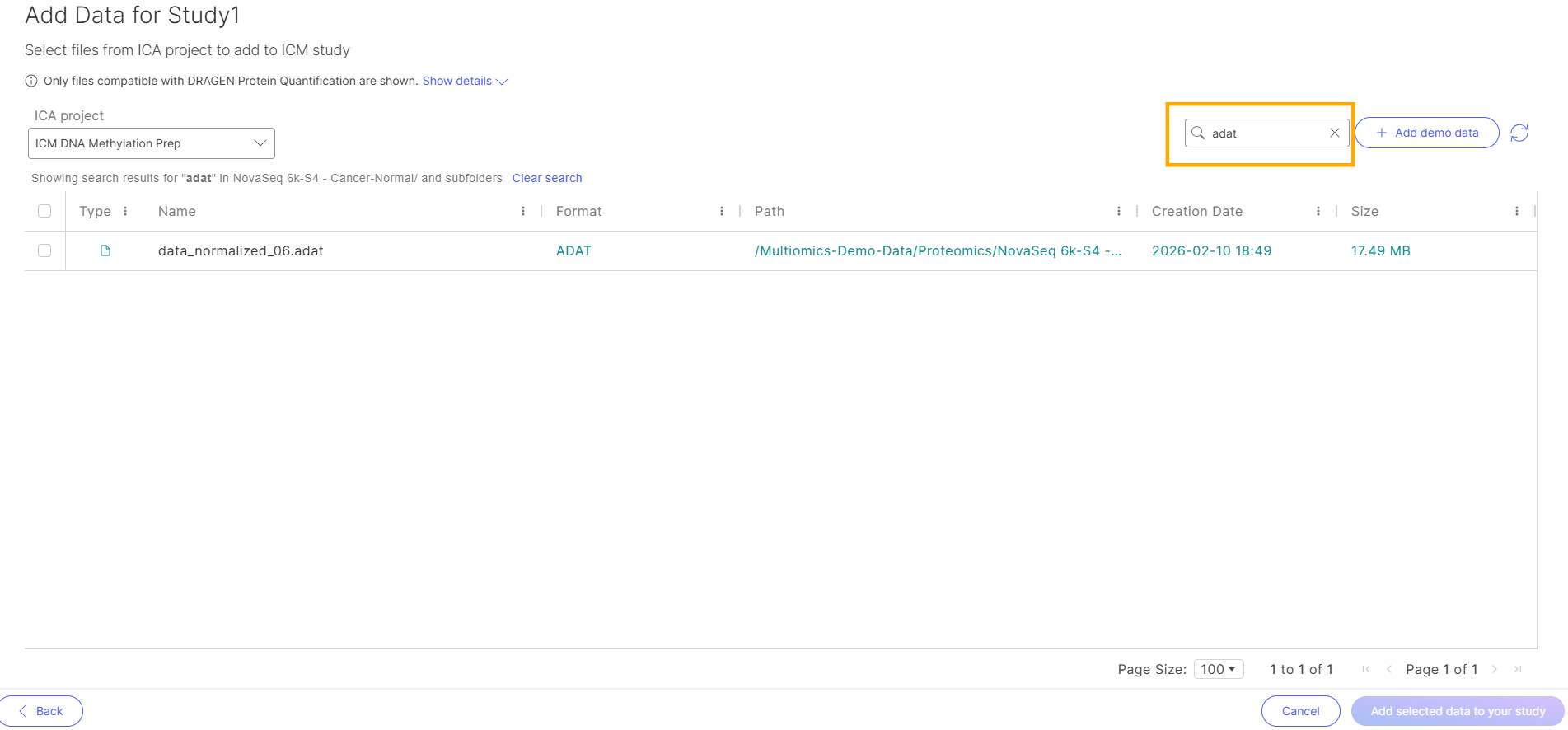
Once you've selected your data, click
.
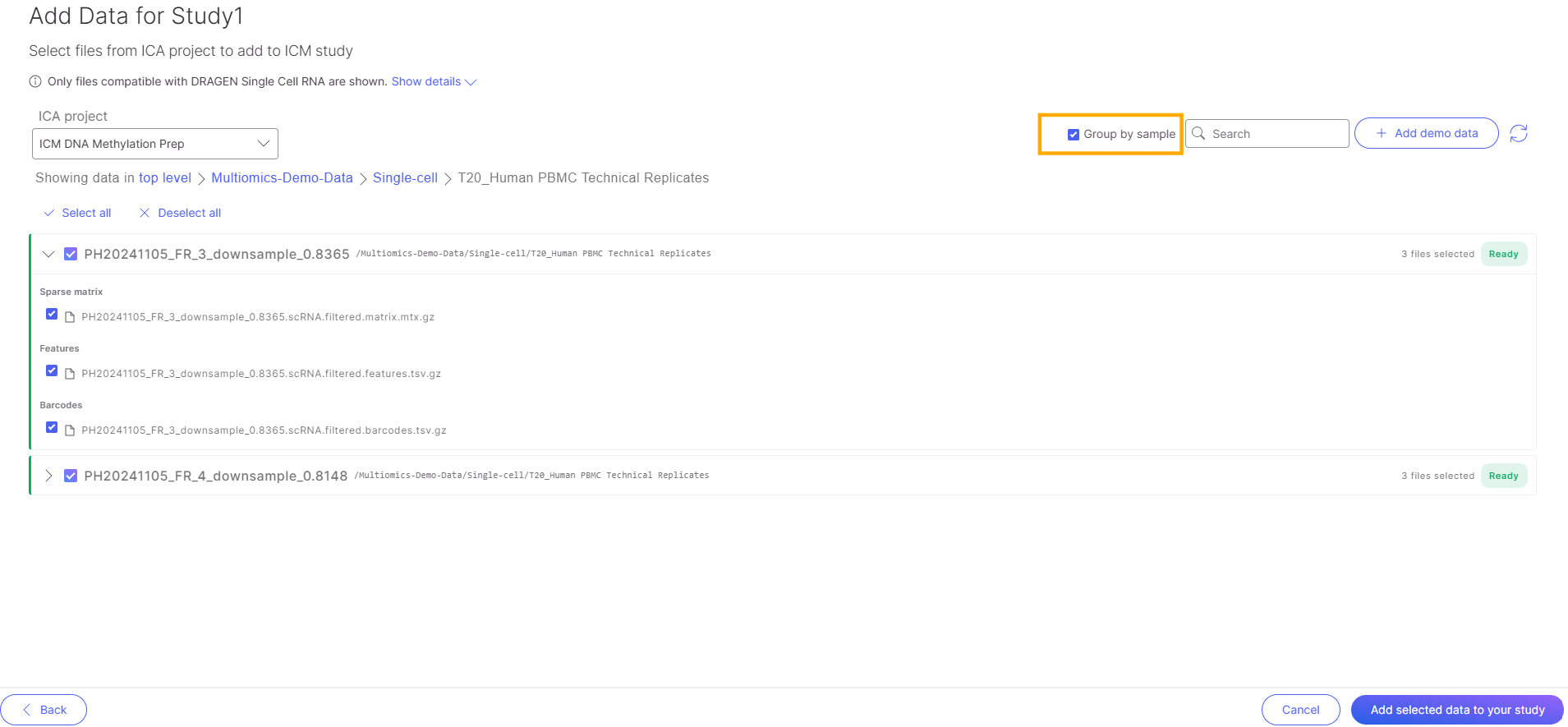
Once you've selected your data, click  to add the data to your study. Upon submitting, you'll be redirected to the **Samples** tab, and a message will indicate your data ingestion was successful. Here you can [upload metadata](/icm/studies/view-studies/sample-metadata.md) from local storage, [add additional data](#add-data) from a BioInsight Platform Core project, create [sample groups](/icm/studies/view-studies/view-studies-1.md), or create [new analysis](/icm/studies/view-studies/view-studies-2.md#create-analysis).
