> For the complete documentation index, see [llms.txt](https://help.multiomics.illumina.com/llms.txt). Markdown versions of documentation pages are available by appending `.md` to page URLs; this page is available as [Markdown](https://help.multiomics.illumina.com/icm/analyses/analysis-functionality/data-viewer/chromosome-view/navigating-through-the-view.md).
# Navigating Through the View
A user can browse through the results by using one of the tools in the navigation bar (on the top of the view). *Select tracks* tool is the topic of a separate section, while the remaining tools are described below.
## Search box
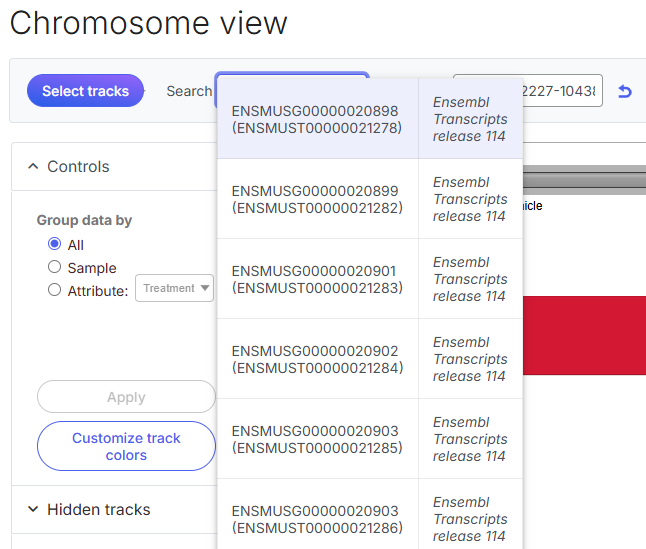
The *Search* box can be used to zoom to genomic features that are available in the annotation track. Start typing a search term and it will show you the first 10 suggestions. To select one, use the **arrow keys** or **mouse**, or type the full **feature name** and hit **enter**.
## Position box
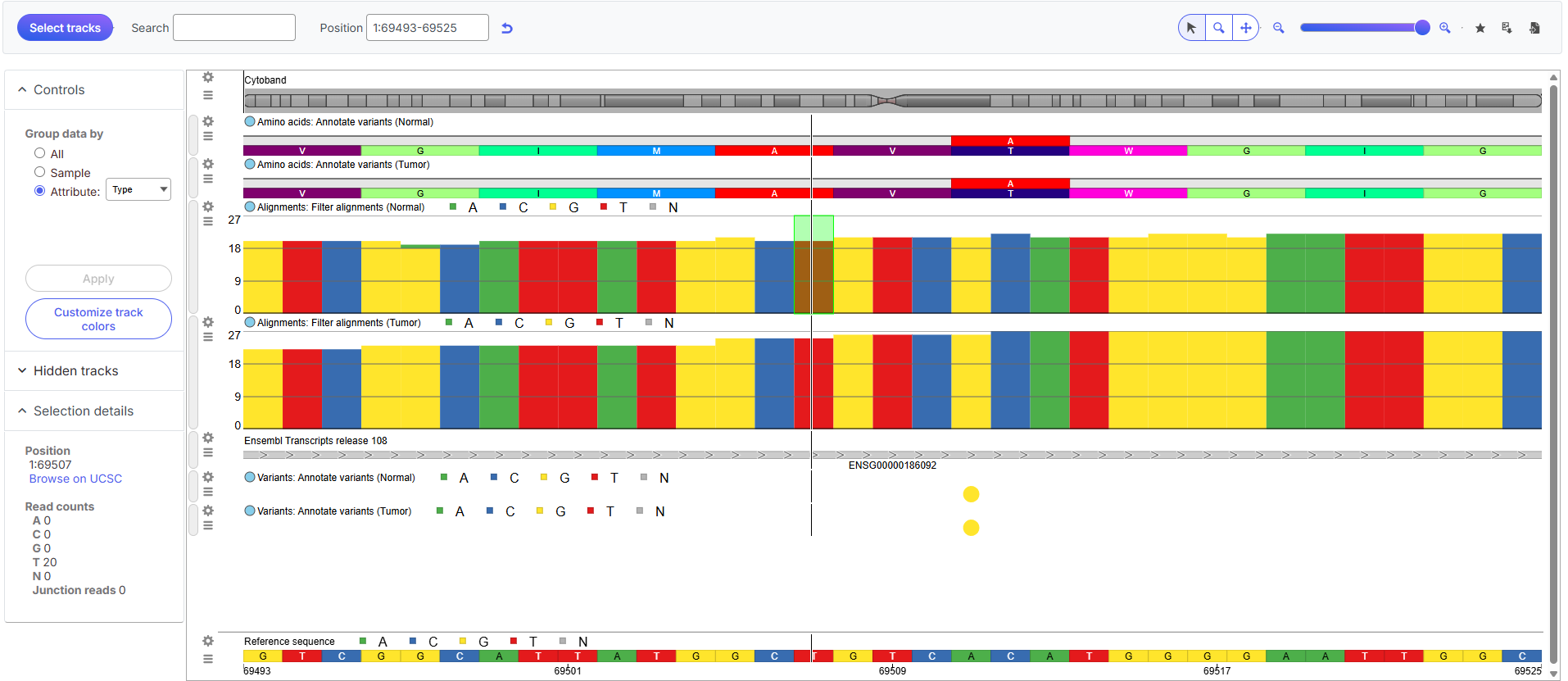
The *Position* box enables the user to visualize a region in the genome. Coordinates are accepted in the following format: **chromosome:start – end** (zero-based). To show an entire chromosome, it is sufficient to enter just the chromosome number. The U-turn icon  on the right of the position box takes you back to the original view, i.e. resets the zoom level to the view that was shown when the viewer was first opened.
## Mode selector
Next, the *mode* selector helps you to quickly navigate through the results. From the left, there is *pointer mode*, *zoom mode*, and *pan mode*.
When *pointer mode* is activated, the appearance of the cursor will change to an arrow. Pointer mode provides details on any item (e.g. short sequencing read, variant, microarray probe, annotation feature) selected on the canvas. The selected item is highlighted by a green box.
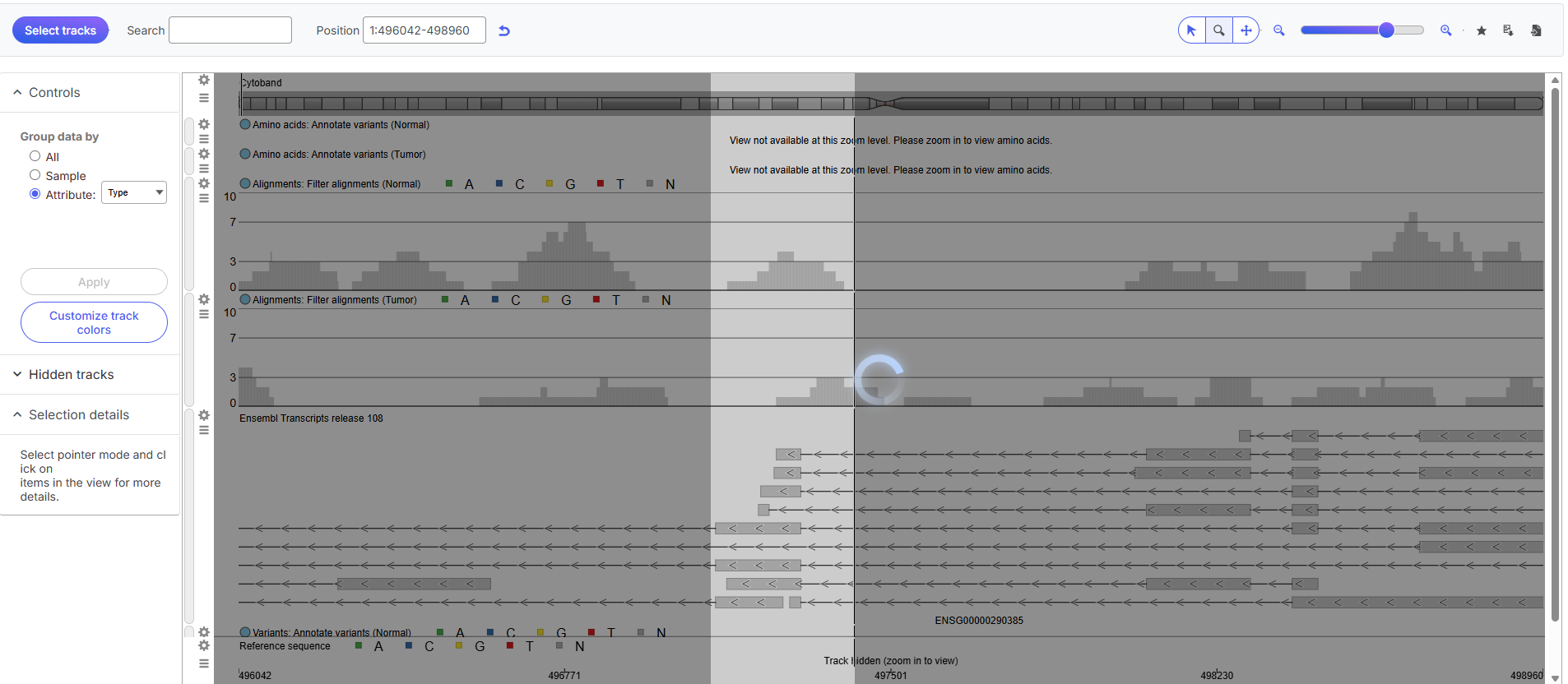
When *zoom mode* is activated, the appearance of the cursor will change to a plus sign ( + ). With the zoom mode on, you can magnify a specific region by positioning the cursor ( + ) to the left of the area of interest and then **left-click & drag** the mouse to the right of the area of interest. When the viewer refreshes, it will come "closer" to the region that was selected (by halving the number of basis displayed on the screen).
Alternatively, **left-click** on the canvas, it will zoom in one level, by halving the number of bases visible on the screen. To zoom out one level **Ctrl & left-click** should be used; as a result, the number of visible bases will be roughly doubled.
When *pan mode* is activated, the appearance of the cursor will change to four arrows. **Left-click and drag** the canvas to the left or to the right to move upstream or downstream in the genome, respectively.
## Zoom slider
Zooming out and in can also be achieved with the zoom tool by moving the slider left or right, respectively, or by clicking the **magnifying glass** icons (– and +).
## Bookmark tool
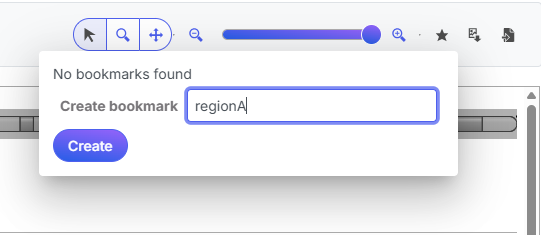
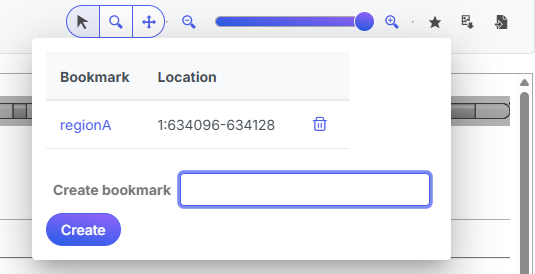
The Bookmark tool enables you to save the location of an interesting region. After zoom to the location of an interesting region, select the bookmark icon (i.e. the star) opens the dialog. To create a new bookmark, type the name of the region in the *Create bookmark* box and push *Create*.
Next time you want to go directly to the same location, click on the name of the **bookmark** will plot the region as defined in the *Location* column. To remove a bookmark, click on the bin icon  .
## Save view
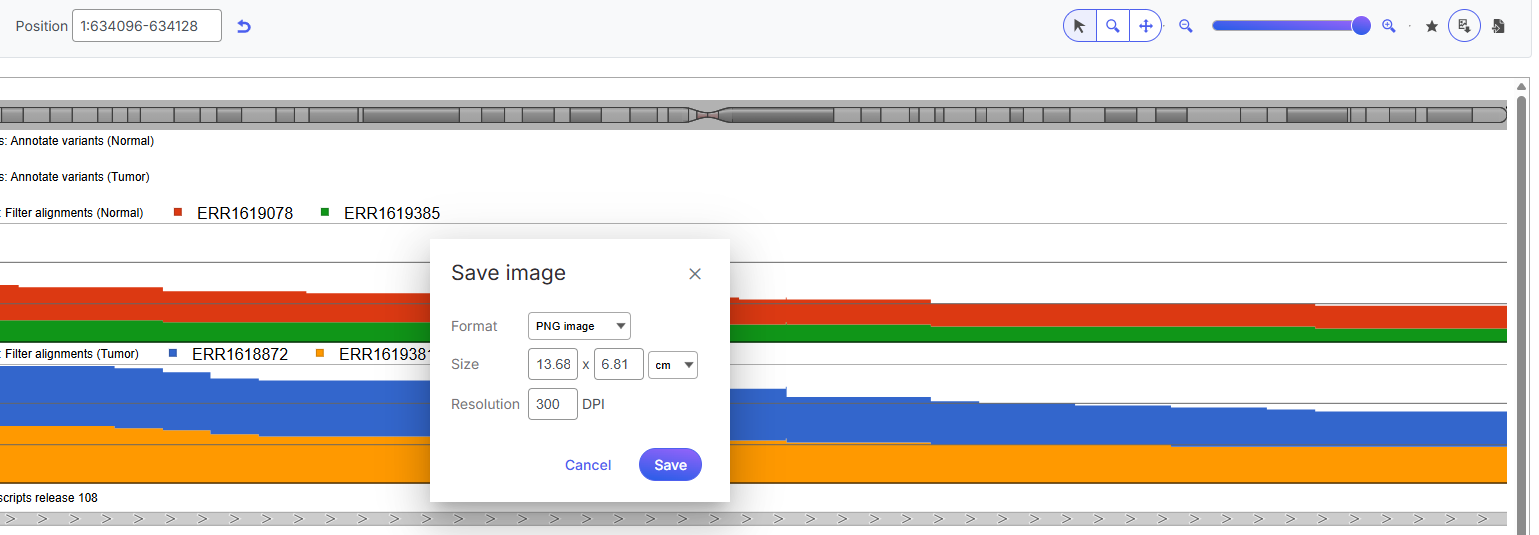
Once the plot has been modified, you can save the current appearance of the canvas by using the **save** icon  . The resulting dialog enables you to change the image *Format* (options include: .svg, .png, .pdf), *Size*, and *Resolution*. The image will be saved into your *Downloads* directory.
---
# Agent Instructions
This documentation is published with GitBook. GitBook is the documentation platform designed so that both humans and AI agents can read, navigate, and reason over technical content effectively. Learn more at gitbook.com.
## Querying This Documentation
If you need additional information that is not directly available in this page, you can query the documentation dynamically by asking a question.
Perform an HTTP GET request on the current page URL with the `ask` query parameter, and the optional `goal` query parameter:
```
GET https://help.multiomics.illumina.com/icm/analyses/analysis-functionality/data-viewer/chromosome-view/navigating-through-the-view.md?ask=&goal=
```
`ask` is the immediate question: it should be specific, self-contained, and written in natural language.
`goal` is optional and describes the broader end goal you are ultimately trying to accomplish on behalf of the user. GitBook uses it to tailor the answer towards what is most useful for that goal.
The response will contain a direct answer to the question and relevant excerpts and sources from the documentation.
Use this mechanism when the answer is not explicitly present in the current page, you need clarification or additional context, or you want to retrieve related documentation sections.